UV conformal coating inspection
This guide explains how to use the conformal coating inspection feature on the AgnosPCB AOI.
This feature allows operators to visually inspect the conformal coating on PCBAs using UV lighting.
Note
This function requires installing a separate hardware kit. To install the UV kit, follow the instructions in the following section: UV conformal coating installation guide
Caution
The conformal coating inspection uses UV lighting so we recommend using the safety glasses included with the kit.
Video
For a complete walkthrough of this feature, watch the following video:
1. Generate a REFERENCE image or load it
To generate a REFERENCE image follow the steps in the following guide or load a previous REFERENCE.
2. Open the Live View
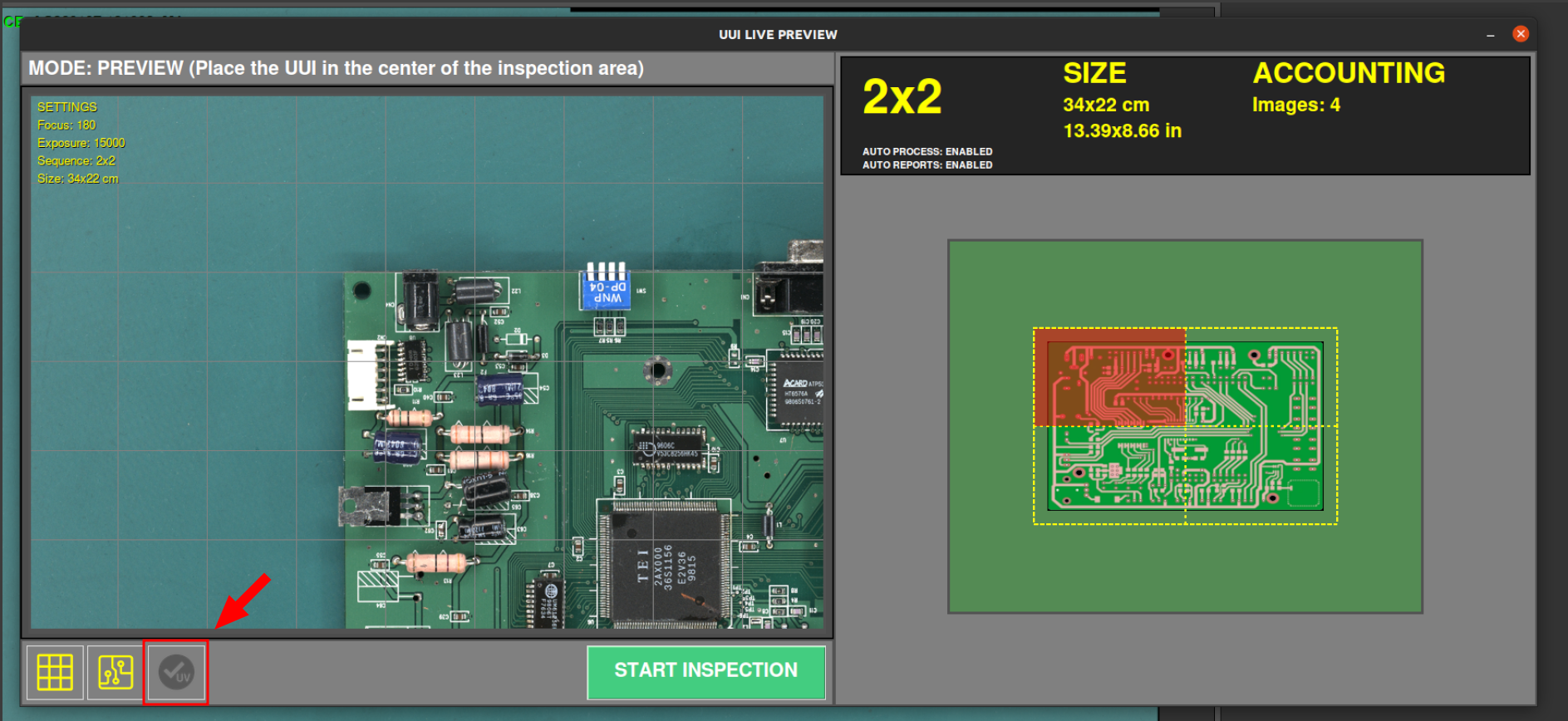
Use the UUI capture button to open the Live View window of the current PCBA.

3. Enable UV inspection
In the Live View window, enable the UV inspection option located at the bottom of the interface.
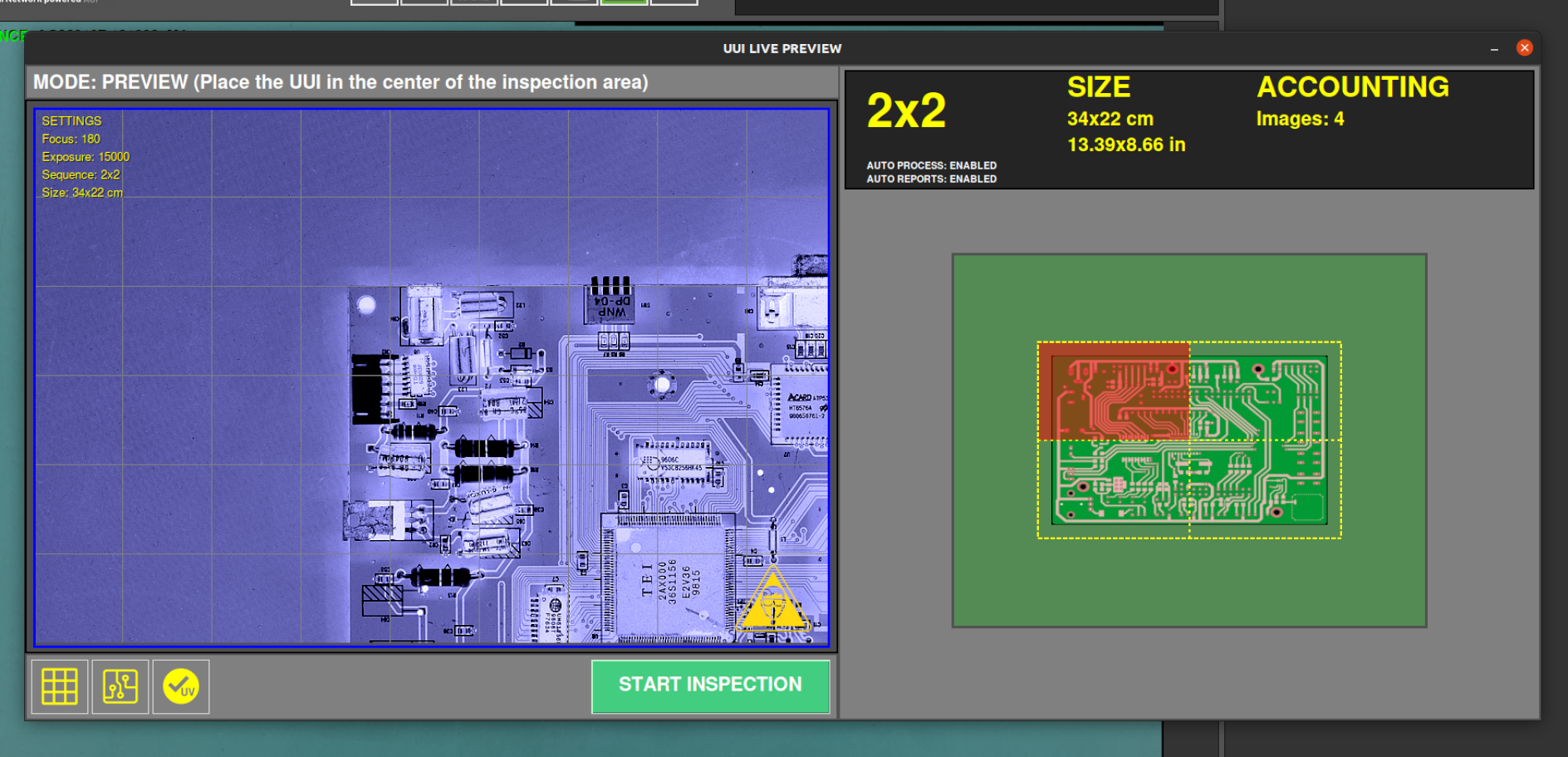
Once enabled, a simulation of the PCB under UV lighting will be displayed.
Caution
From this point onwards, it is mandatory to wear the safety glasses included with the kit.
Then, place the UUI at the center of the inspection area and press the Start Inspection button to begin the inspection process.

4. Inspect the coating
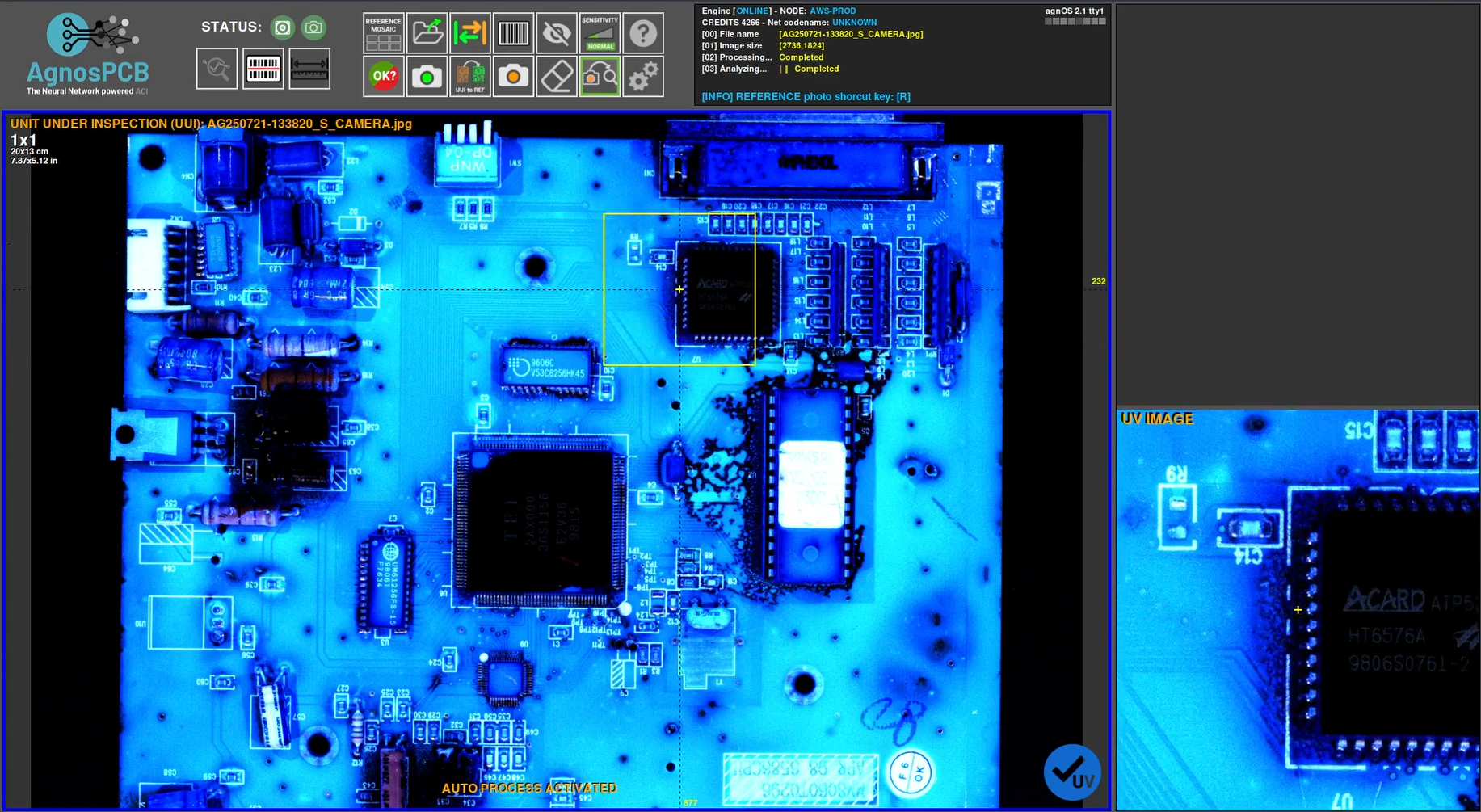
Observe the PCB under UV lighting to verify the correct application and coverage of the conformal coating.
Note
This inspection is performed manually by the operator. No AI-based detection is involved, so the operator must visually identify any defects or missing coating.
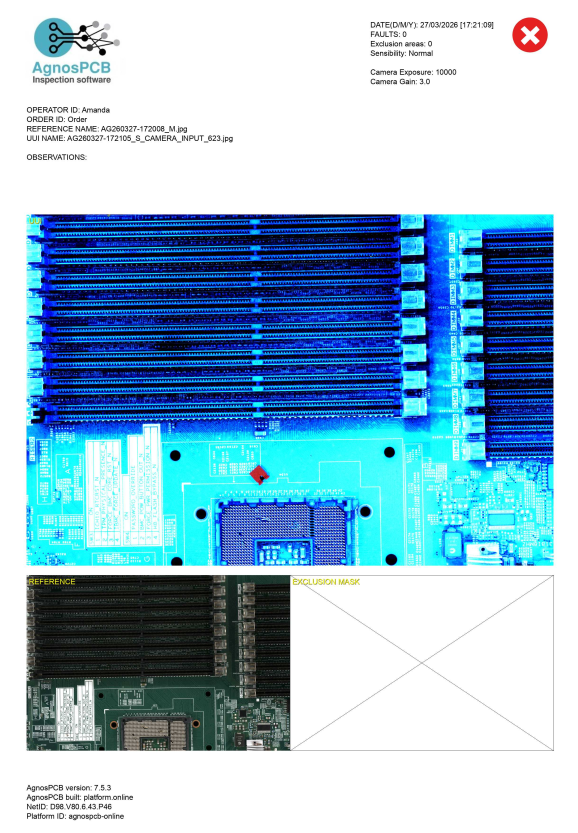
The captured UV image is included in the final inspection report for documentation and traceability purposes.